

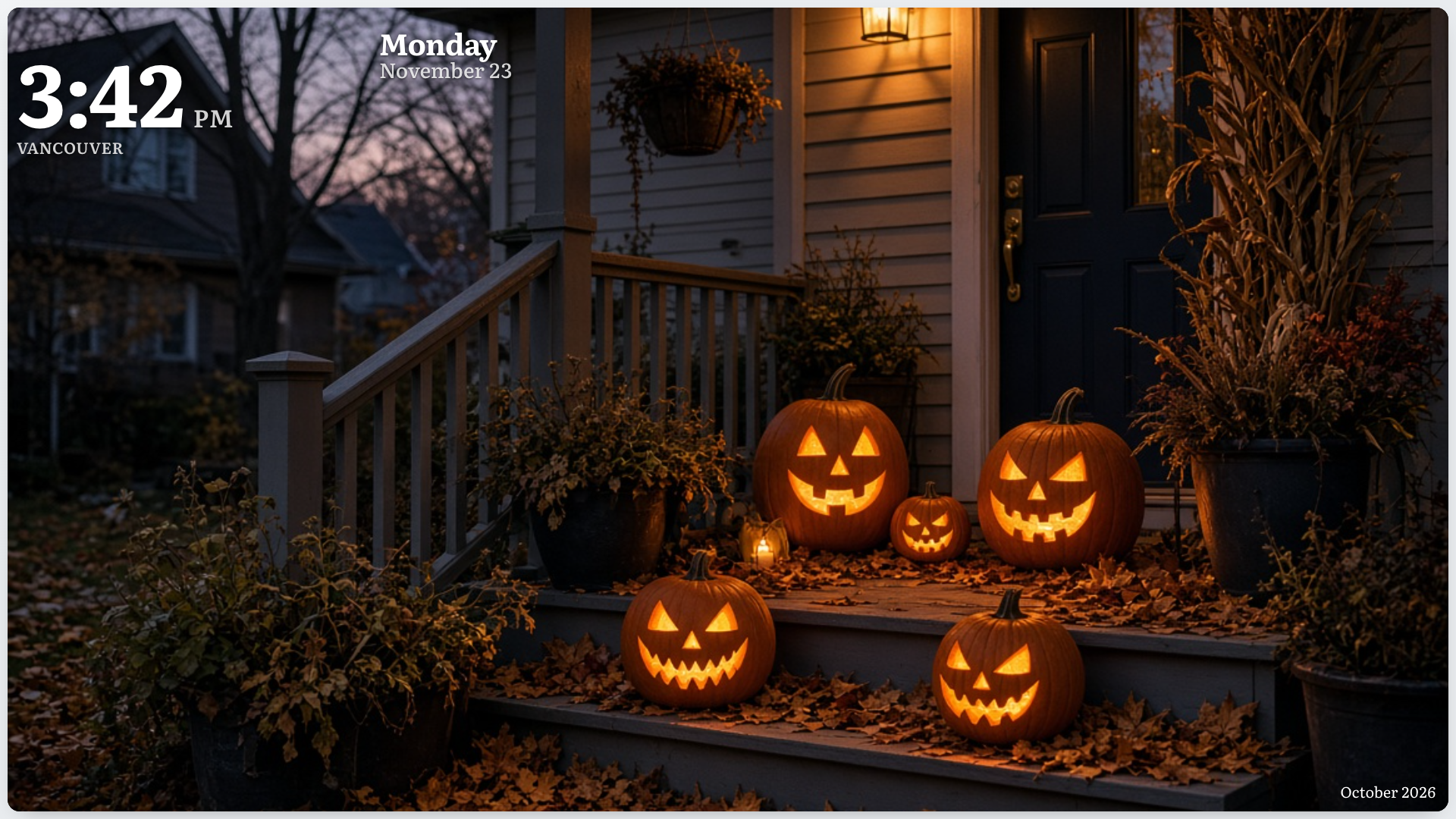
Digital photo frames are lovely and do exactly one thing. Family wall calendars are useful and usually look like spreadsheets. Most kitchens only have room for one screen, so why choose? Everydaypane is a family dashboard when someone walks up to it and a photo frame the rest of the time.
What Makes a Photo Frame Good
The hard part of a photo frame isn't showing photos. It's showing *your* photos well, every day, without anyone curating them. Everydaypane's photo frame does a few things for that:
- Smart fit. A photo fills the frame unless that would crop too much. Then it's shown whole, over a soft, blurred copy of itself, instead of black bars.
- Portrait pairs. Two tall photos sit side by side in a wide frame, the way you'd arrange prints.
- On this day. Photos taken on today's date in earlier years come first, captioned “On this day · 2019”.
- Captions that mean something. “June 2, 2024 · 2 years ago”, from the date the photo was taken.
- Slow drift. A gentle zoom keeps it feeling alive without being distracting (and it stops for anyone who prefers reduced motion).


Where the Photos Come From
Use the albums you already have: Google Photos, Amazon Photos shared albums, iCloud shared albums, OneDrive, Dropbox, Immich, Flickr and more. Or upload to a private photo library that only your household can see.
Family can add photos too. Turn on Family Can Add Photos for a library album, and anyone in the family can send a picture from their phone. New photos show up next on the wall, captioned “Just added”, so grandparents visiting for the weekend see the trip photos that evening.
When Someone Walks Up, It's a Dashboard
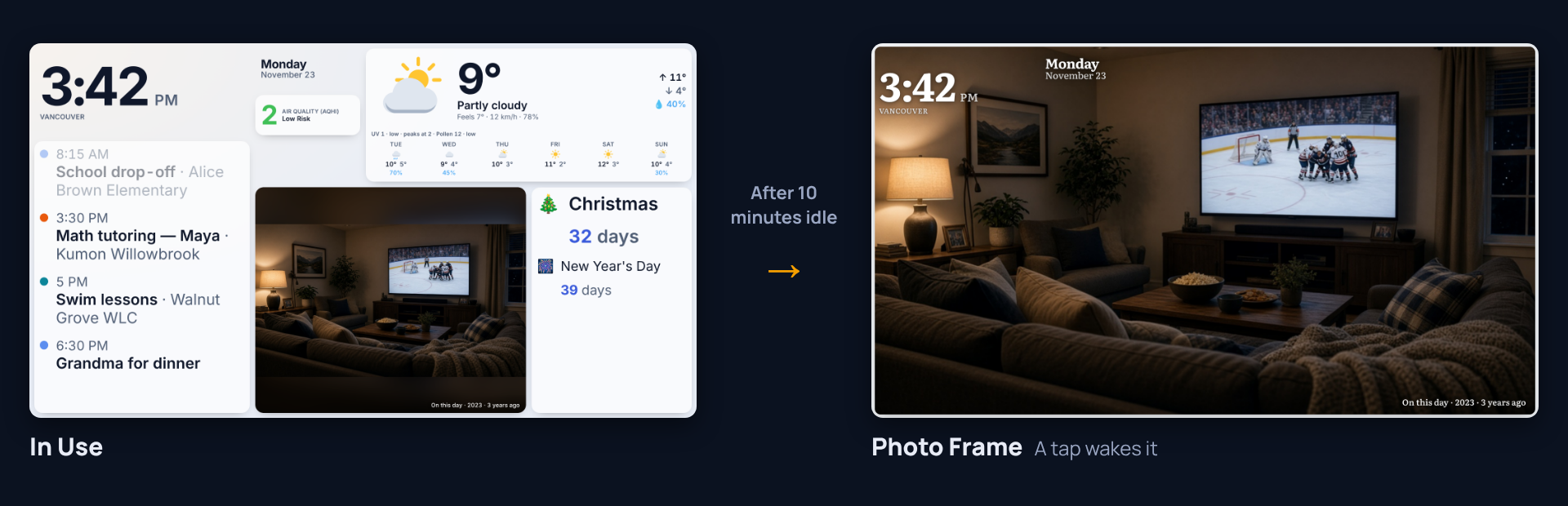
Set the screen saver to show a view you built, like the Photo Frame starter template. After the minutes you choose without a touch, the wall becomes the photo frame. One tap brings back the calendar, weather and the rest, and that tap never presses anything by accident.
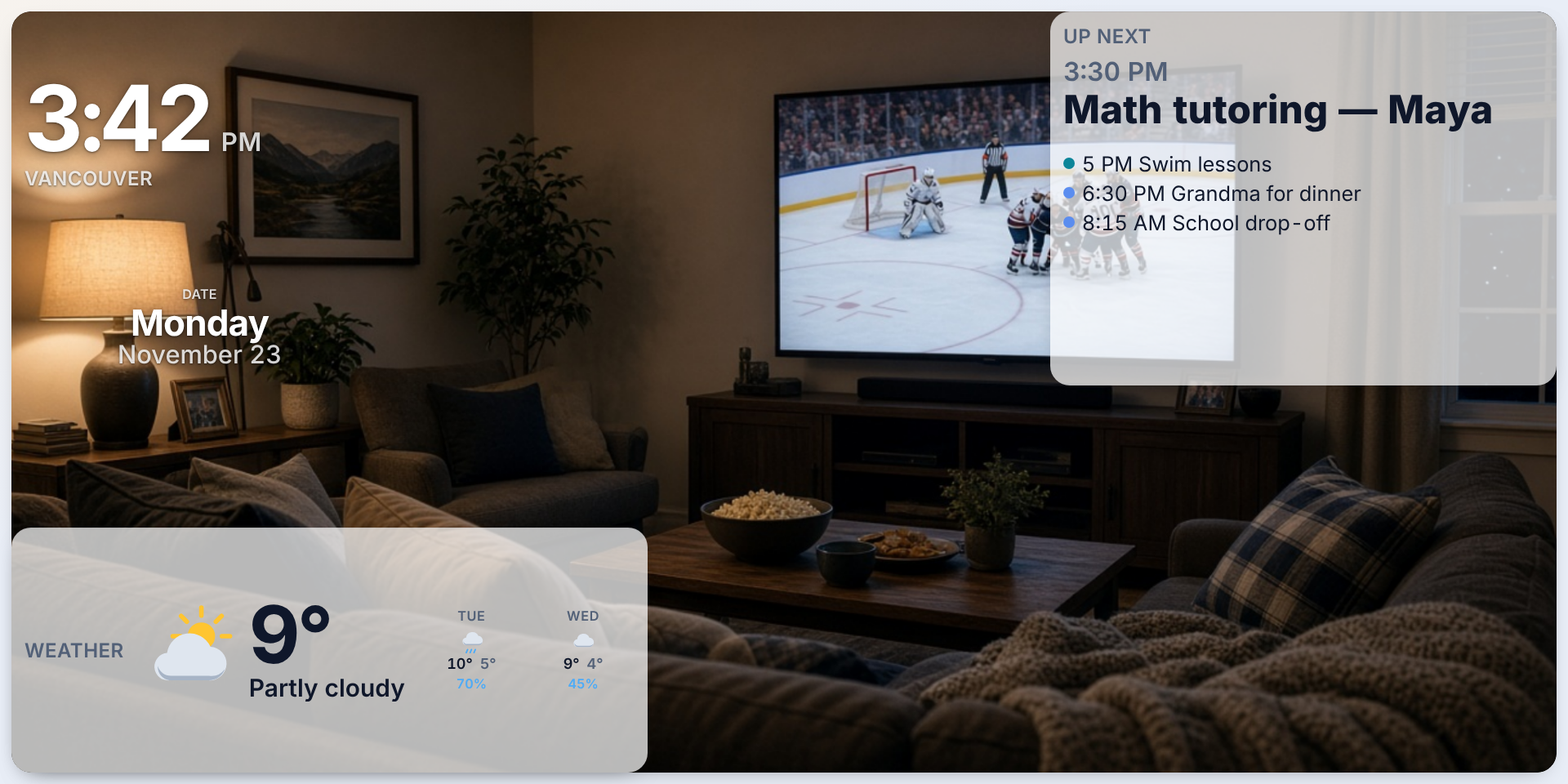
You can also keep a few widgets on top of the photos, like a clock, the weather and the next event, with readable panels behind them.
Set It Up
- In Settings › Photos, add an album: connect Google Photos, paste an iCloud or Amazon shared album link, or create a library and upload.
- In Views, add a view from the Photo Frame starter template.
- Tap Edit View and turn on Show When Nobody's Using the Screen.
- In Settings › Screen Saver, pick the minutes without a touch and Time Between Photos (one minute is a calm default).
- Optional: turn on Go Dark at Night so the frame isn't lighting up an empty kitchen at 2 AM.
Tip. Photos are part of Free (one view, up to two screens). The photo frame screen saver is part of Household. There's more detail in Turn the Wall Into a Photo Frame.
Ready to try it? Start Free on Everydaypane.