

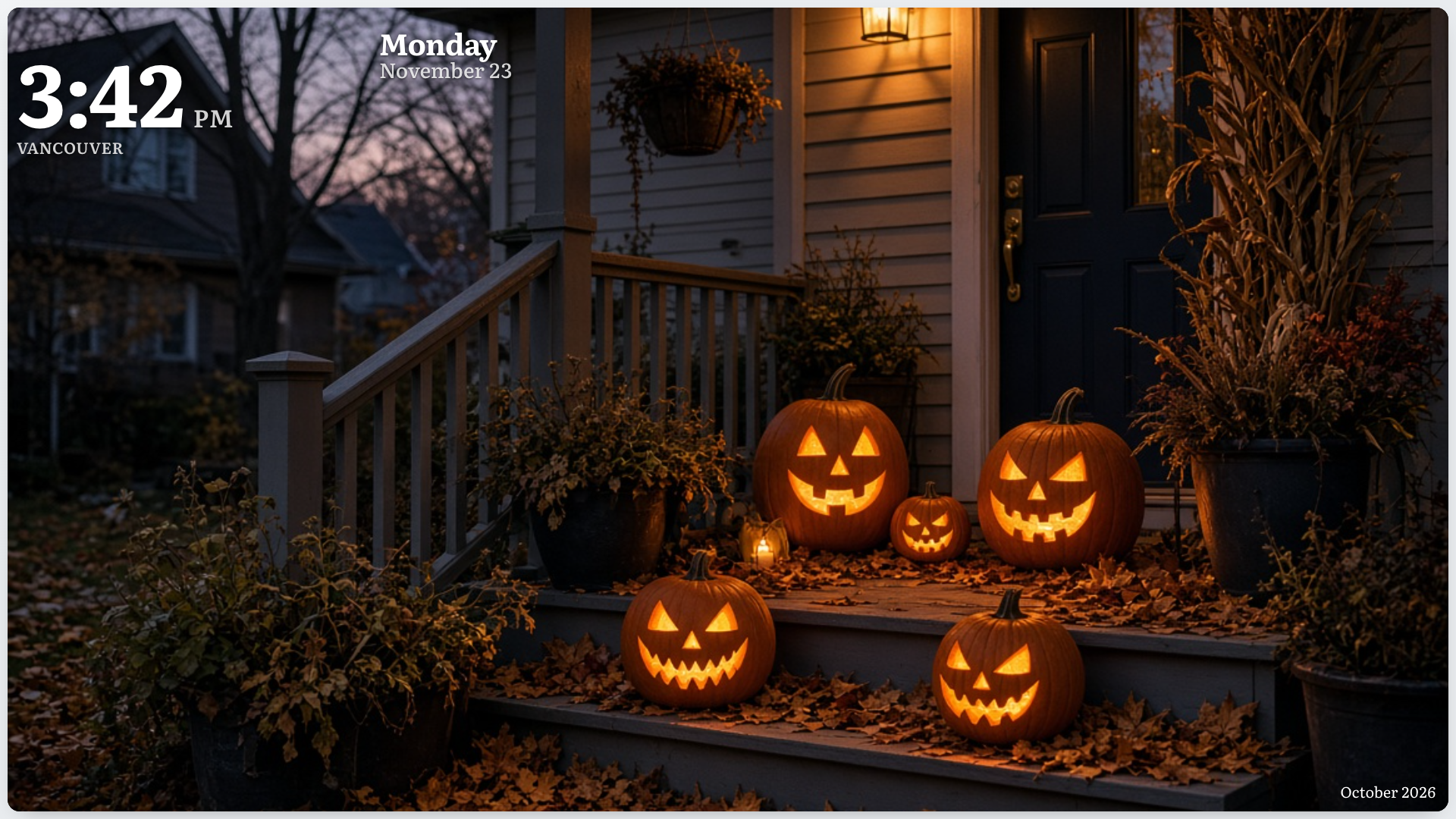
A wall dashboard earns its spot when someone is reading it: the morning rush, packing lunches, checking the bus. The rest of the day the kitchen is quiet, and a schedule nobody is looking at is just a bright rectangle. The screen saver turns that time into a photo frame. After a few minutes with no touch the wall shows a view you designed, and one tap brings the dashboard straight back.
What It Does
- After the minutes you choose without a touch (anywhere from 1 to 240), the wall shows your idle view. It can also show photos full screen, or simply go dark.
- The idle view is an ordinary view, built in Views with the same widgets as the rest of the wall: photos, a clock, the date, the weather, a countdown to the next birthday.
- A tap only wakes the screen. It never presses anything on the idle view, so a shopping list tick or a light switch can't fire by accident.
- Waking goes back to whatever the display should be showing now: its fixed view, or the morning, afternoon, evening or overnight view from the schedule.
- Night still wins. If Go dark at night is on, the screen is black between the hours you pick instead of showing photos to an empty room.
What Wakes It
A touch, a Home Assistant motion sensor near the screen (up to five), the doorbell, a new emergency alert, or a kitchen timer going off. The alert strip and the doorbell pop-up are drawn above the screen saver, so nothing urgent hides behind a photo.
Set It Up
- In the household panel, open Views and add a view. Pick the Photo frame starter template: photos fill the screen with a small clock and date in the corner. Change anything you like; other widgets can sit on top of the photos with a readable panel.
- Tap Edit view and switch on Show when nobody's using the screen. (The same choice lives in Settings › Screen saver & alerts: set Show to A view (like a photo frame) and pick the view.)
- In Settings › Screen saver, set Minutes without a touch. Ten is a good start for a busy kitchen; one or two if you'd like the frame to come up quickly.
- Optional: switch on Go dark at night and pick the hours, and add motion sensors if you use Home Assistant, so the wall wakes as someone walks up.
- Tap Publish to wall. Every display picks up the change on its next settings check.
Good to Know
- There is one idle view per household, shared by every display.
- The idle view keeps its own colour scheme, so a dark, quiet photo frame can follow a bright morning layout.
- While the idle view is up, the view loop pauses, and heavier widgets such as the wind map keep running on the frame.
- The Views tab marks the screen saver's view with “· idle”, and it can't be deleted until you pick another.
- The live preview in the household panel never shows the screen saver, so it won't kick in while you edit.
Tip. The screen saver is part of Household, alongside the time-of-day schedule and more views. Compare plans on pricing, or see how widgets sit on top of photos.
Ready to try it? Start Free on Everydaypane.