

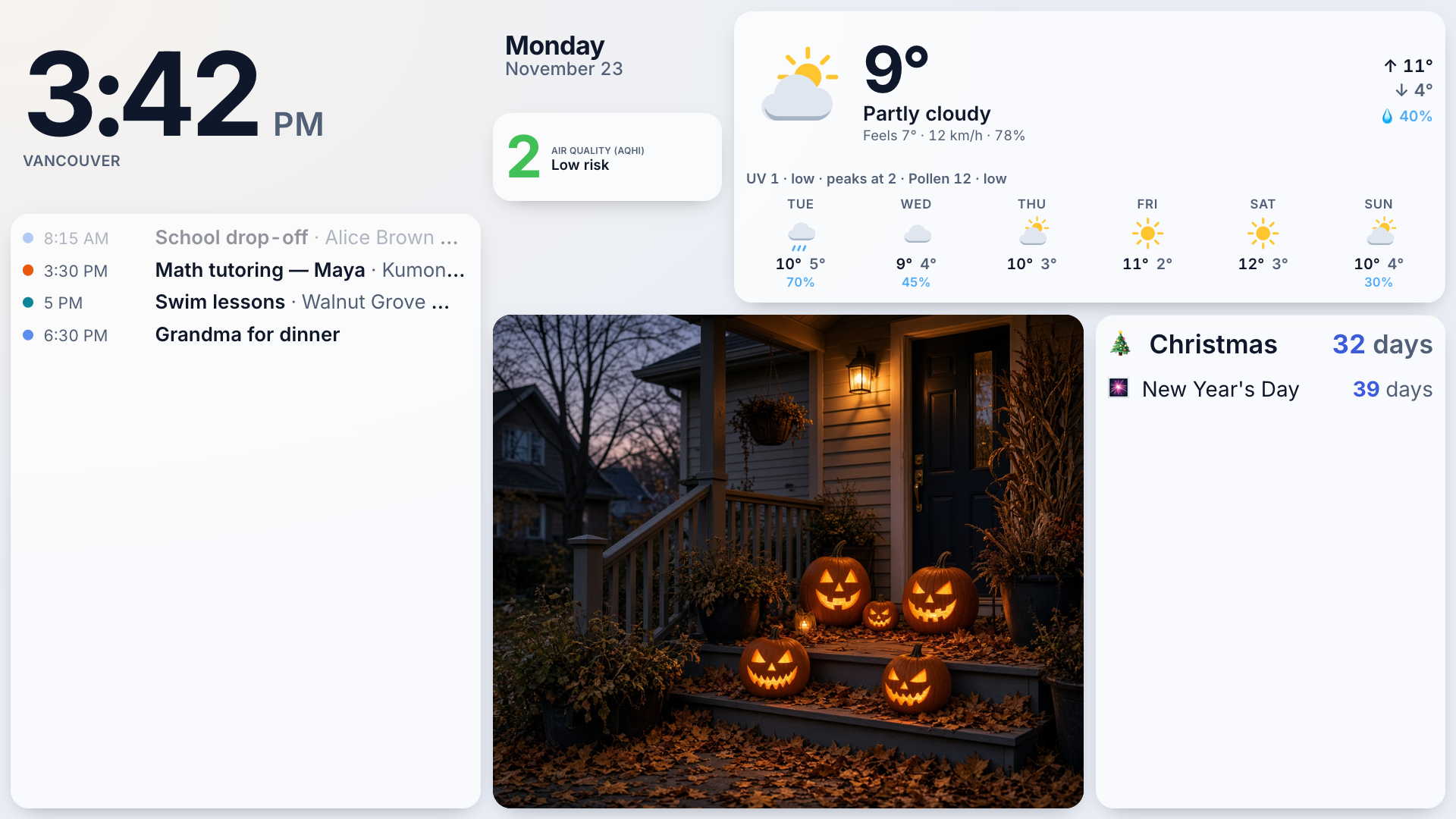
A family dashboard is only as good as the screen it lives on. It's on all day, someone taps it with wet hands, and it has to be readable from across the room at 7 AM. Here's how to pick one, from the free option in your drawer to a proper wall panel, and how to set each up with Everydaypane.
What Matters More Than Specs
- Size and distance. A 10-inch tablet is fine on a counter. On a wall you'll read from the table, 15 inches and up is far more comfortable.
- Orientation. Landscape 1920 × 1080 matches the default 12 × 8 grid. Portrait screens get an 8 × 12 grid and their own starter templates.
- Touch. Ticking chores, the shopping list or a timer needs touch. A TV without touch still makes a great read-only wall.
- Power and mounting. A short, hidden cable to a nearby outlet matters more than a faster processor.
- Brightness at night. Pick a screen you can dim, or let the dashboard go dark overnight (more on that below).
Your Options
An Old Tablet (Free)
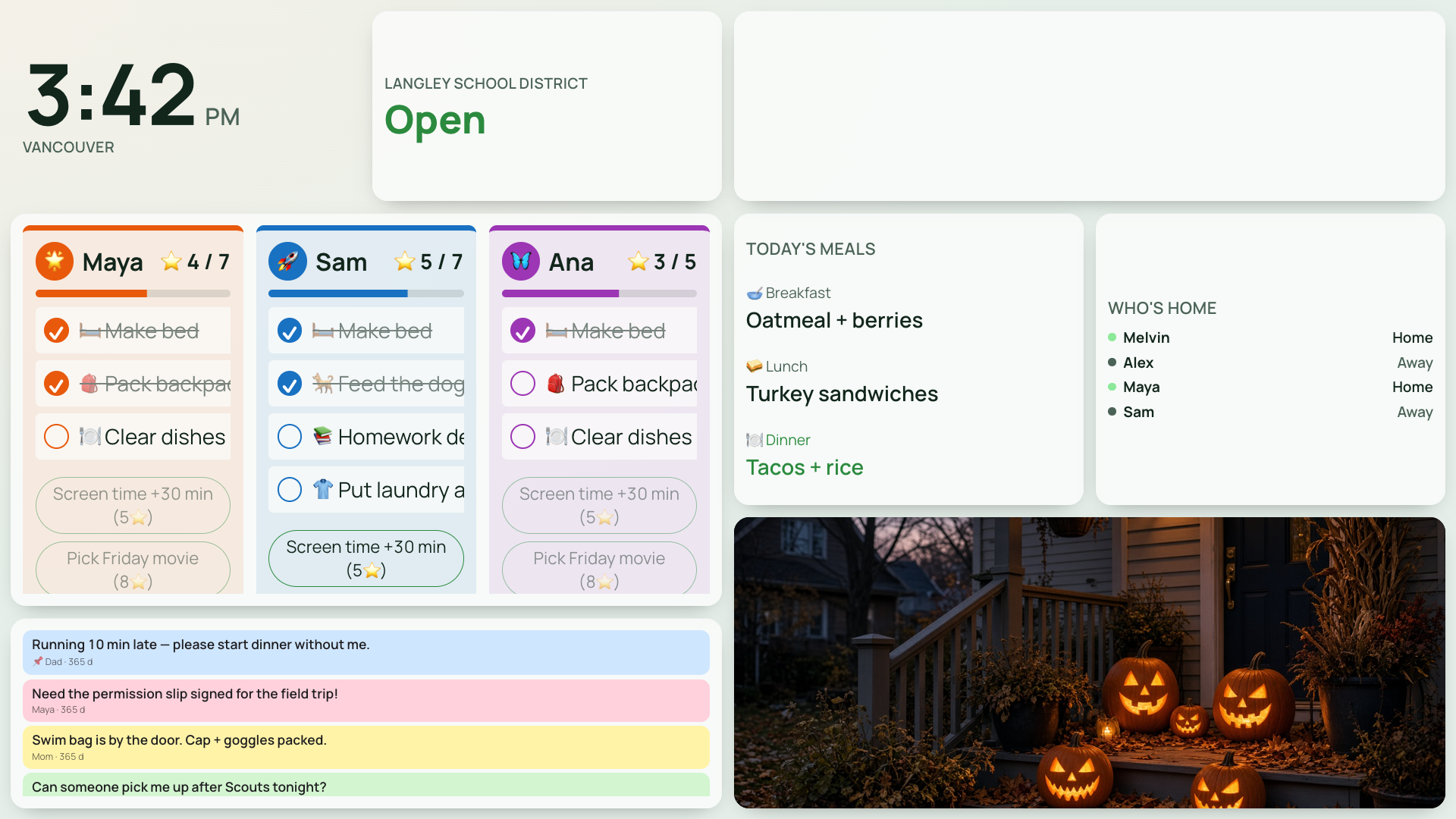
The cheapest wall there is. Mount it with an adhesive tablet holder, keep it plugged in, and open Everydaypane full screen. On an iPad, Guided Access keeps it on one app. On Android and Fire tablets, a kiosk browser app does the same and can stop the screen from sleeping.
A TV You Already Have
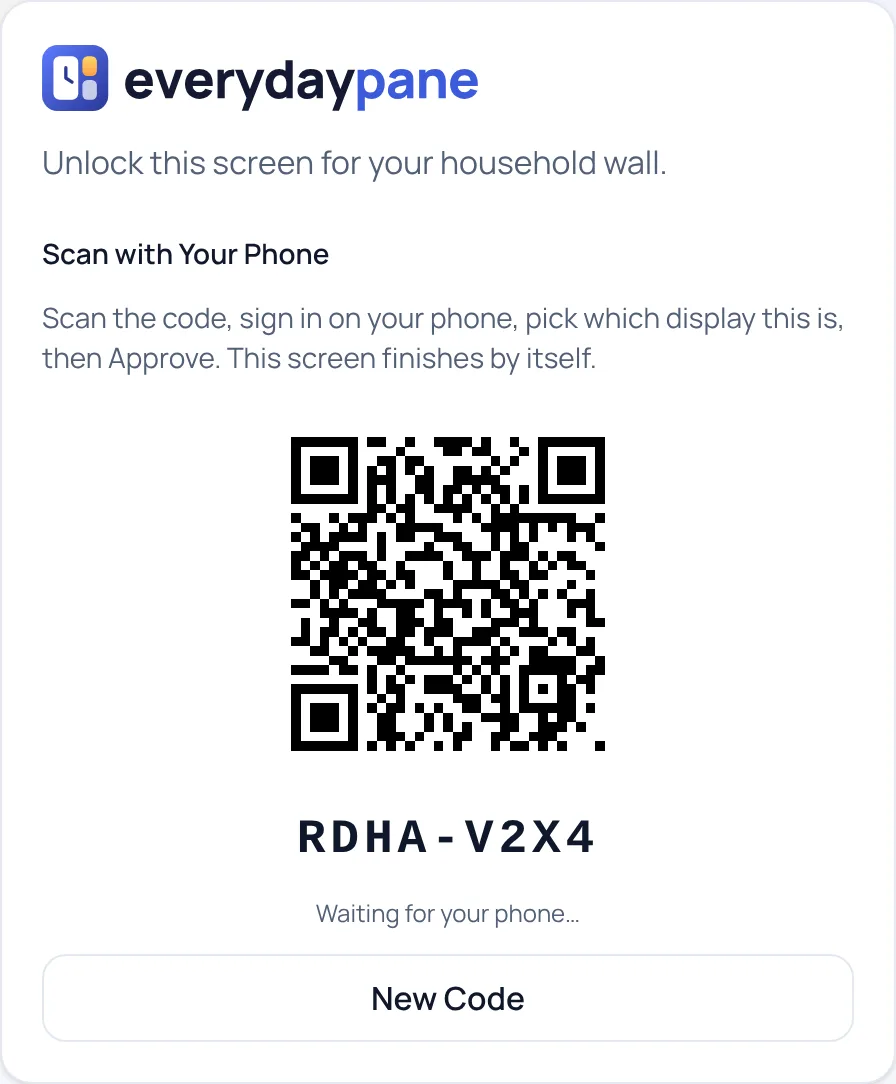
Great for a big, read-only family board in a kitchen or mudroom. Open the display page in the TV's browser, or cast a browser tab with Chromecast. A TV has no touch, so it unlocks with a QR code you scan with your phone.
A Touchscreen Wall Panel
The tidy, built-in option: a 15 to 24 inch touchscreen mounted flush, often powered over the network cable. Our own kitchen runs on Ubiquiti's 21-inch UniFi display, and Everydaypane's wall page is built to stay light enough for low-power panels like it: one small script, no heavy framework, nothing animating that doesn't need to.
A Monitor and a Small PC
A spare monitor with a mini PC or an old laptop behind it works well too, especially with a touch monitor. Set the browser to open Everydaypane full screen at start-up.
Make It Live Well on a Wall
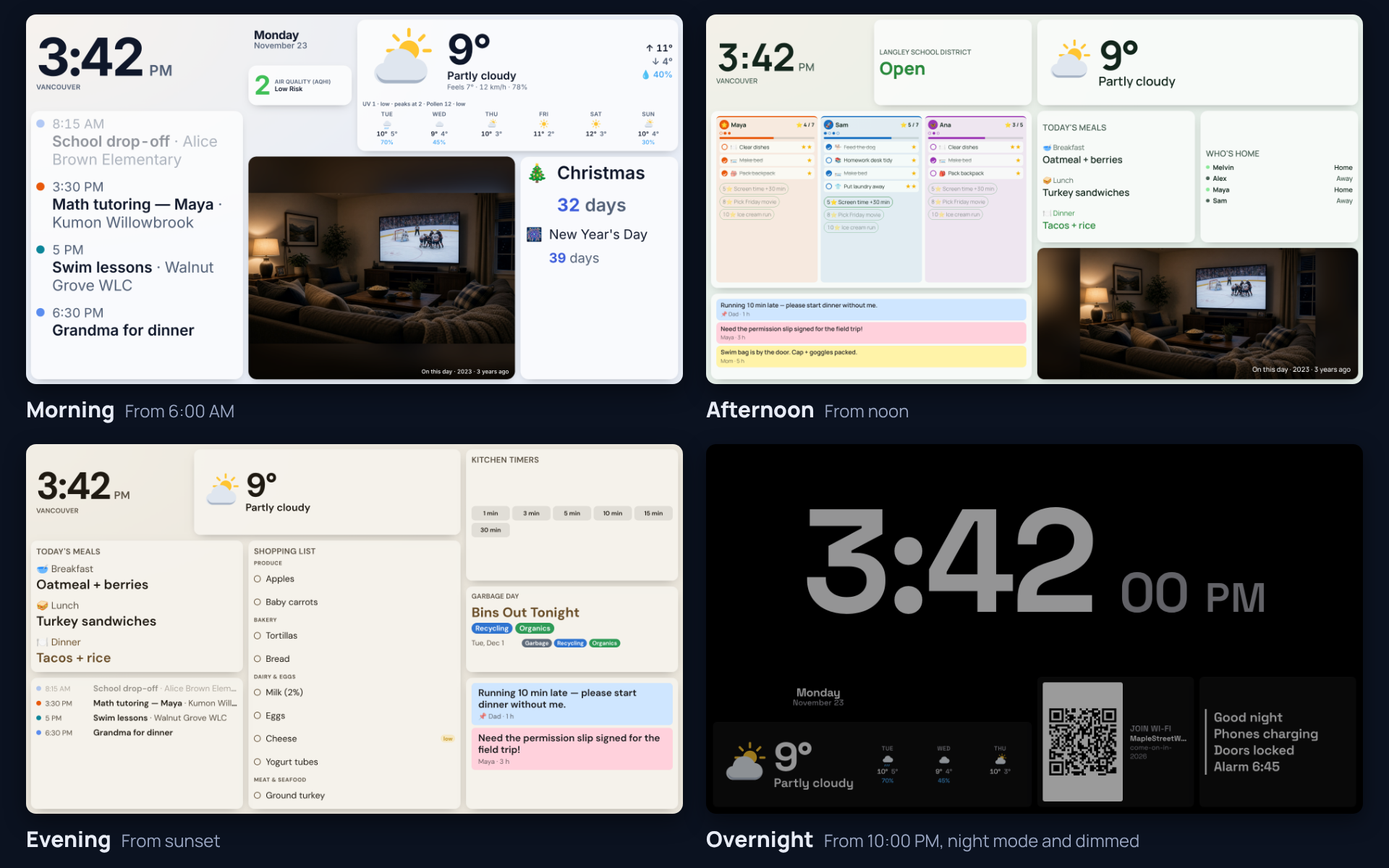
- Night mode and dimming. Each part of the day (morning, afternoon, evening, overnight) can switch view, colours, day or night mode and dimming. It can start at a fixed time, at sunrise or at sunset.
- Go dark at night. The screen saver can show photos when idle and go fully black overnight. A browser can't switch a panel's backlight off, but black is close.
- Burn-in protection. The layout shifts by a pixel or two over time so nothing sits in one spot for months.
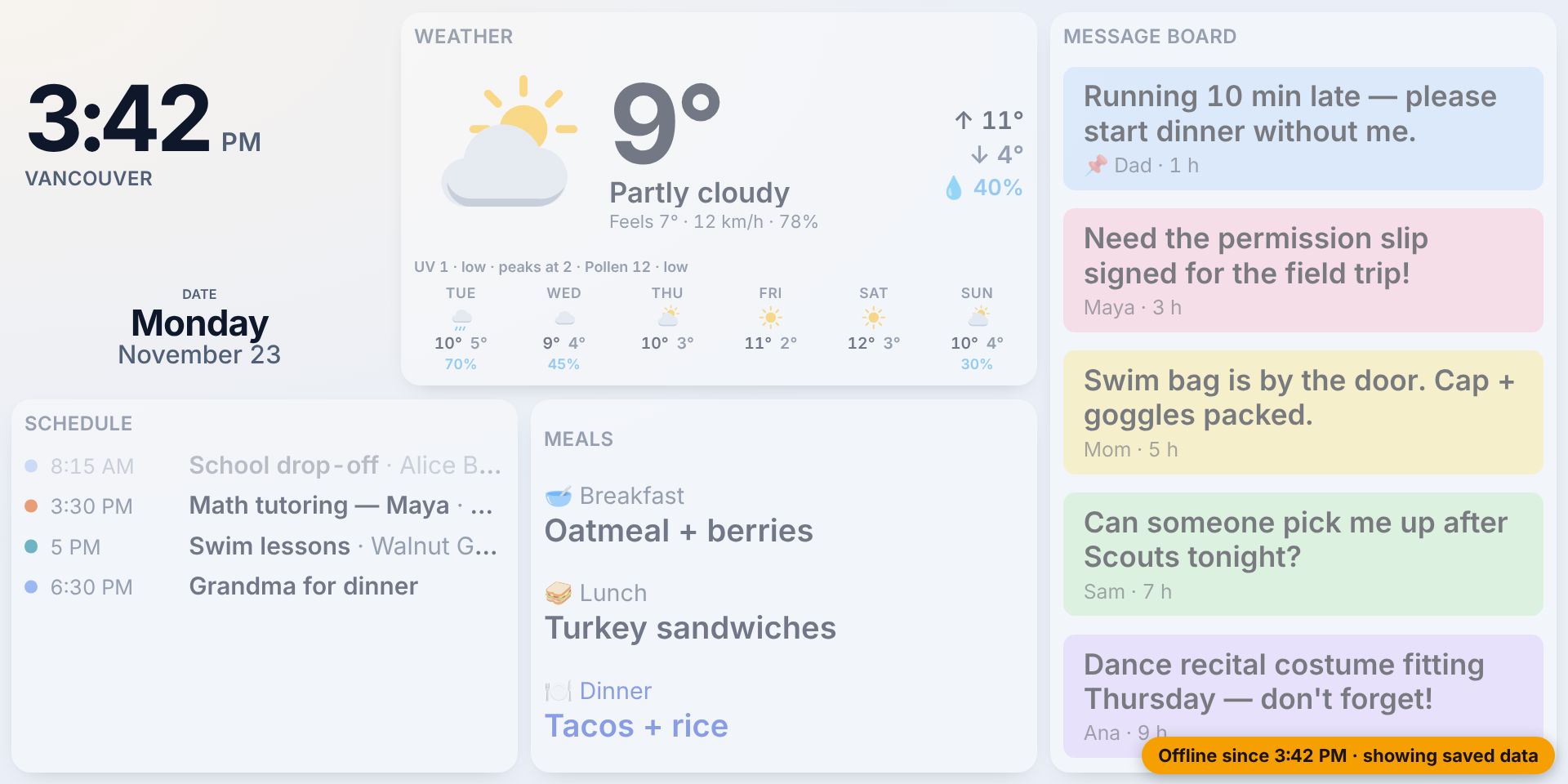
- Offline mode. If the Wi-Fi drops, the wall keeps showing the last good data with a small Offline label, instead of going blank.
Our Pick
Start with what you have. Put an old tablet or TV up this week with the Free plan and see what your family actually looks at. If it sticks, a bigger touchscreen is an easy upgrade later, and your layout comes with you because it lives in your account, not on the device.
Tip. Step-by-step setup for each kind of screen is in Set Up Everydaypane on a Wall Display.
Ready to try it? Start Free on Everydaypane.