

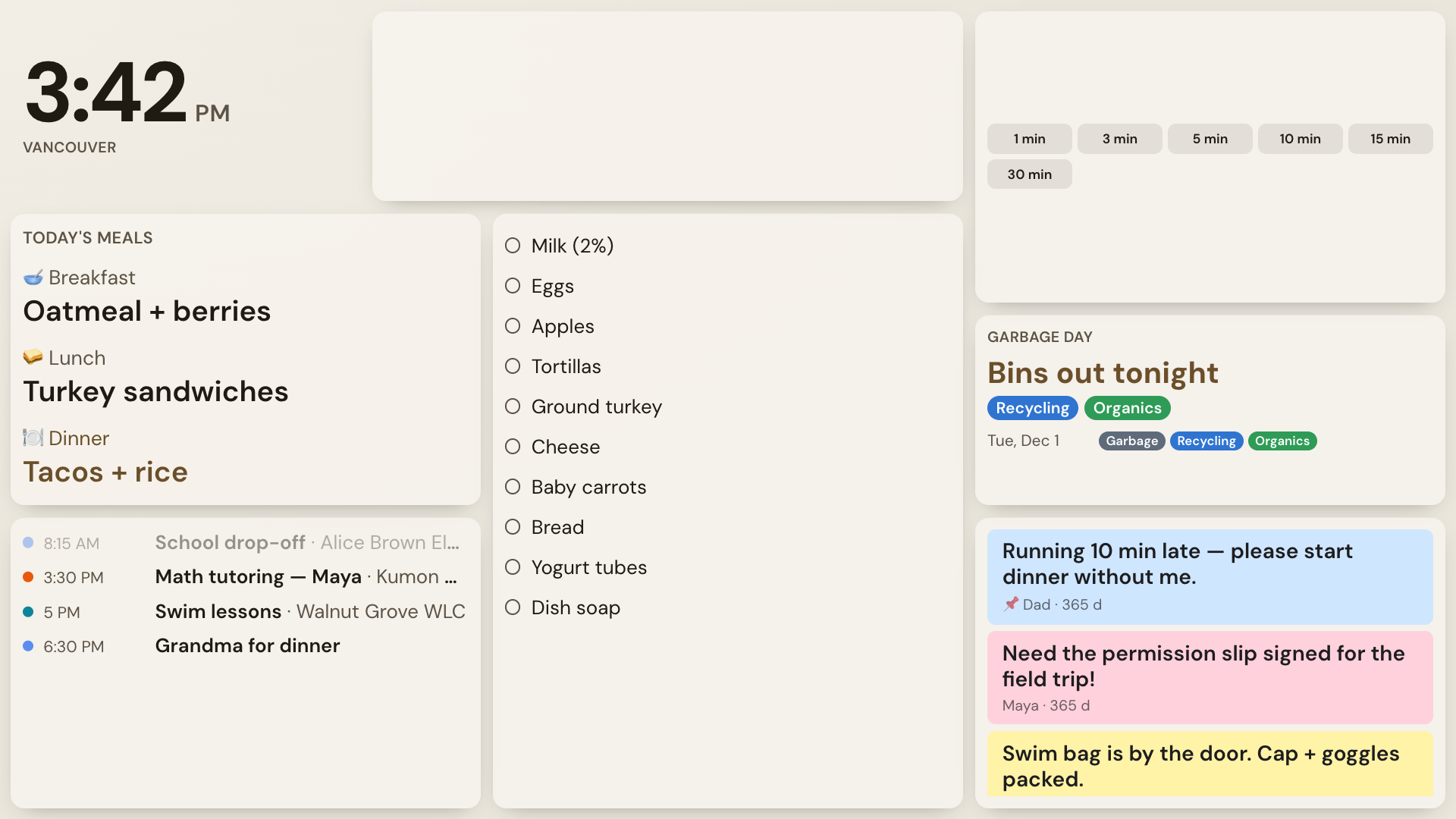
Everydaypane runs in any modern browser. It is tuned for a landscape kitchen panel around 1920×1080, and it also works on tablets, smart displays and TVs you already own. Start with a Free household — two displays, no card.
1. Create a display address
In the household panel, open Displays and add a device. Copy the secret `/d/…` link. New addresses are eight characters; older longer ones still work. You can show and copy the address again any time — it is stored encrypted.
2. Open the link on the screen
- Use the display's browser, or set the address as the start page in kiosk settings.
- Chromecast / Google TV: cast a Chrome tab with the display URL open, or use the TV browser and set the address as the start page.
- Fire tablet / Android: fullscreen browser or a simple kiosk launcher pointed at `/d/…`.
- Pinch zoom is locked on purpose so a fixed wall layout stays put.
- The page sets a short-lived cookie for images; the long token stays in a header for fetches.
3. Match the default grid
Views default to a 12×8 grid with gap 16, edge 14 and tile padding 16 — a good fit for landscape wall panels. One-tap presets and a grouped widget picker speed the first layout. Free includes one view; Household unlocks more.
4. Schedule morning to night
Point the display at the time-of-day schedule so morning, afternoon, evening and night each get their own view, theme and dimming. The screen saver can go dark in a night window and wake on tap, motion, doorbell, alert or timer.
Tip. After B.C.'s permanent daylight time, Everydaypane keeps Vancouver clocks on UTC−7 even when the panel's browser has old time-zone data.
Ready to try it? Start free on Everydaypane.