

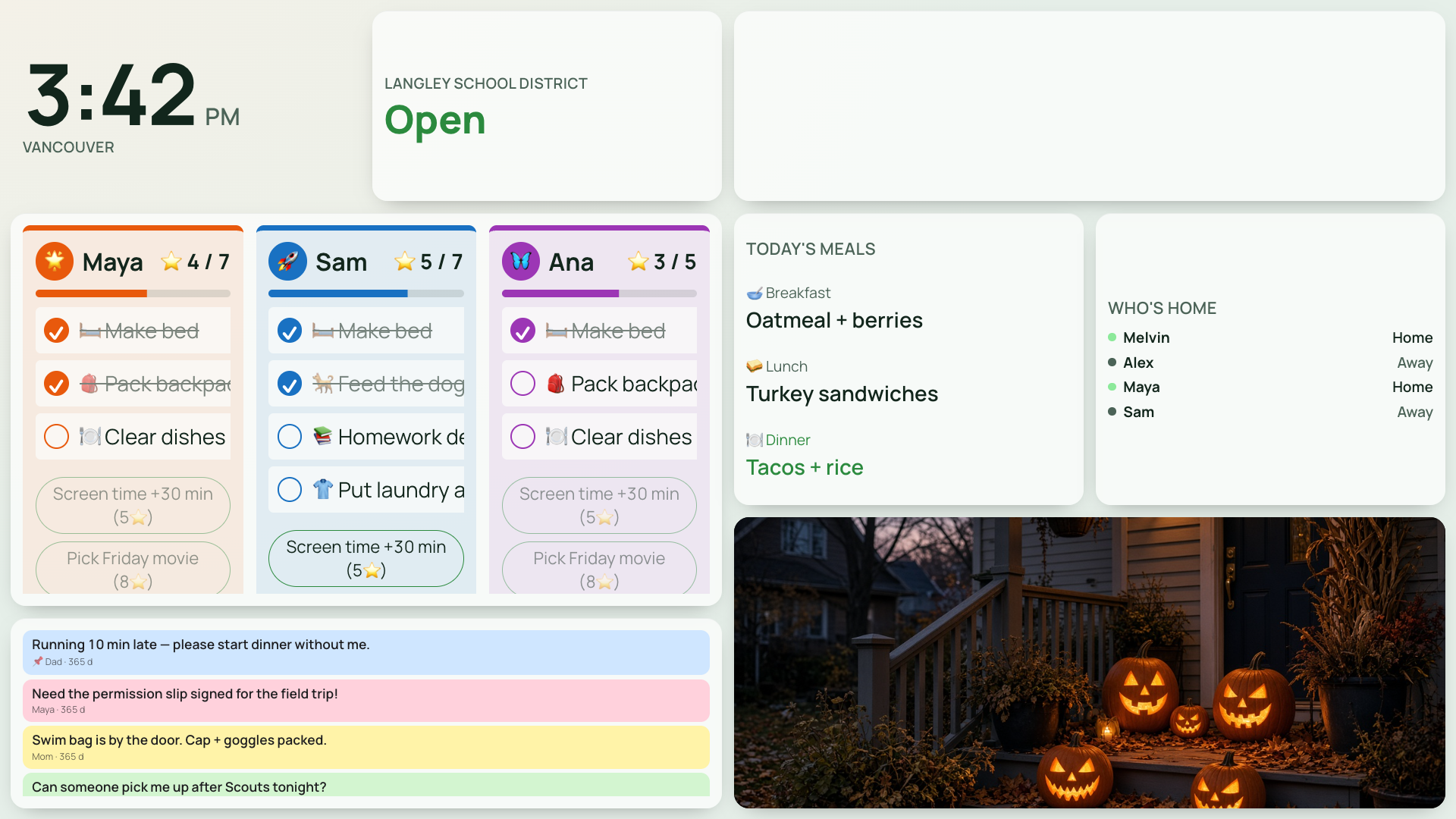
Digital family calendars like Skylight made one idea popular: put the family's week somewhere everyone walks past, not inside four separate phones. It's a good idea. You just don't need a new appliance for it. If there's a tablet in a drawer, a spare monitor or a TV in the kitchen, you already have the hardware. Everydaypane is the software: open it in the screen's browser and it becomes a family wall.
What a Family Calendar on the Wall Should Do
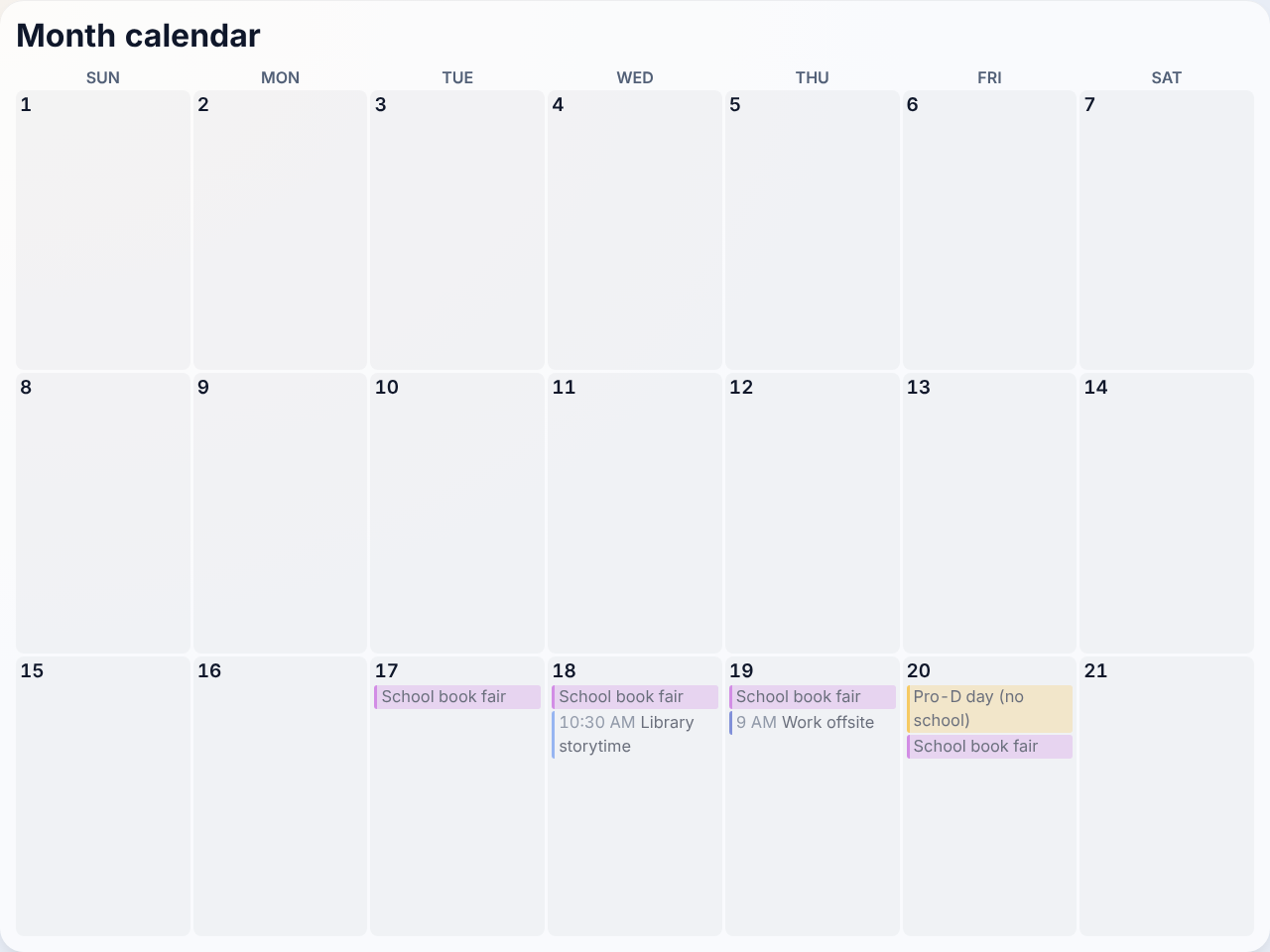
- Show today and the week at a glance, from the calendars you already use (Google Calendar, Microsoft 365 or any iCal link from school or sports).
- Be readable from across the kitchen: big times, big titles, colour per person or calendar.
- Change from your phone, so nobody types on the wall.
- Look good when nobody's using it: photos, the weather, a countdown to the next birthday.
What You Need
- A screen with a web browser. An old iPad, a Fire tablet, an Android tablet, a TV with Chromecast, or a monitor with a small PC. Landscape 1920 × 1080 fits the default layout; portrait tablets have their own templates.
- A power cable that reaches. A wall dashboard is always on, so plan the cable before you mount it.
- A free Everydaypane account. Free includes two displays, one view, two calendars, photos, weather and countdowns.
Set It Up in About Ten Minutes
- Start free and connect Google Calendar (or Microsoft 365) in Settings › Calendars.
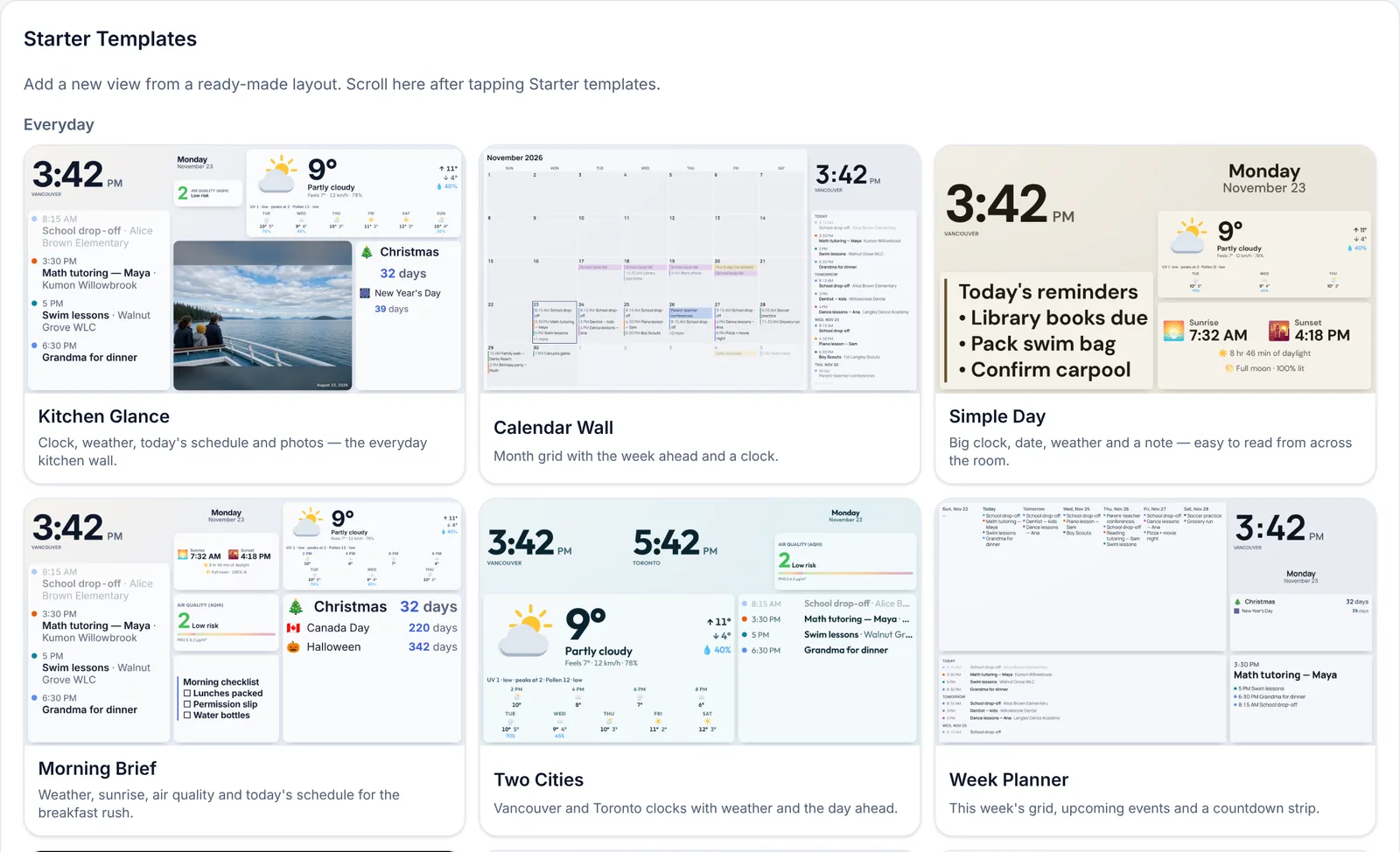
- Open Views, tap Starter Templates and pick a layout. Kitchen Glance and Calendar Wall are good first walls.
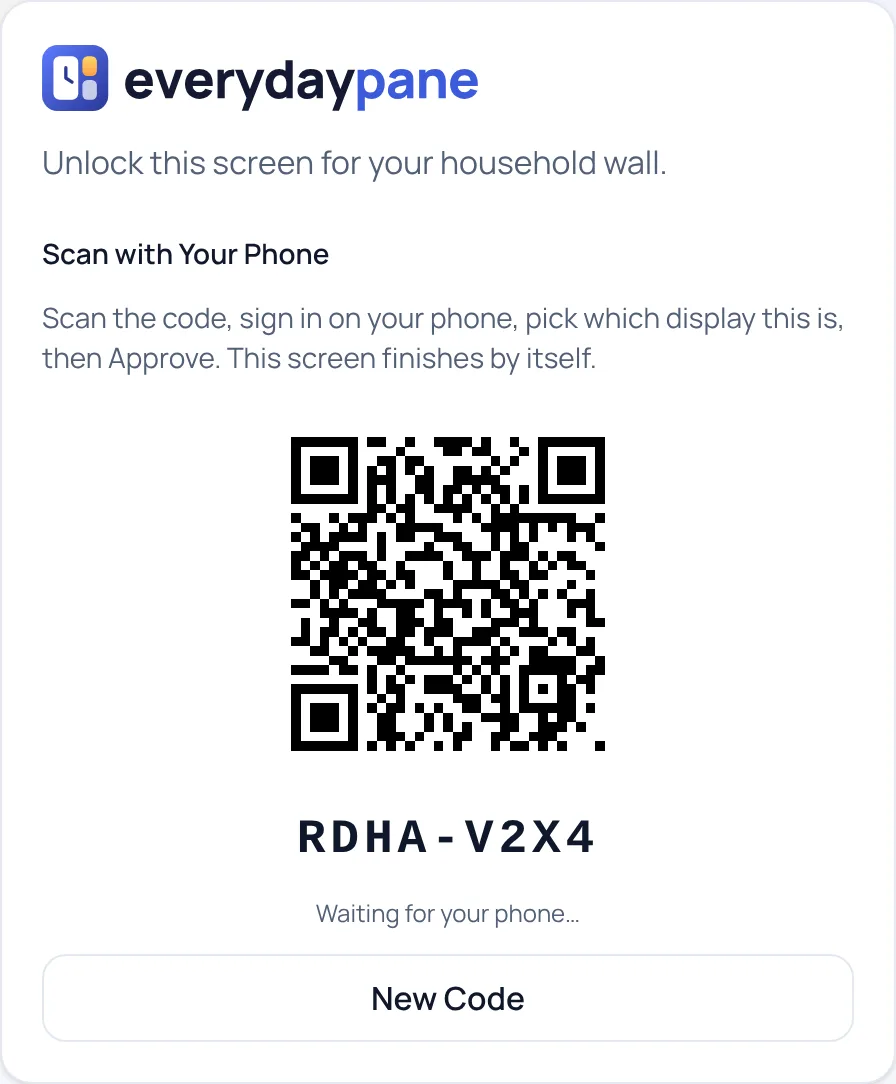
- On the wall screen, open everydaypane.com and tap Connect a Display. It shows a QR code.
- Scan the code with your phone, sign in, pick which display this is and tap Approve. The wall unlocks by itself and stays unlocked.
- Change anything from your phone afterwards. The wall picks up each change on its own.
What You Get That a Calendar Frame Doesn't
A calendar frame shows the calendar. A wall dashboard shows whatever the family asks out loud before school: the weather, the bins, the next bus, dinner, the dentist at 4. Everydaypane puts those on the same screen as the calendar, and every tile can be moved, resized and switched off.
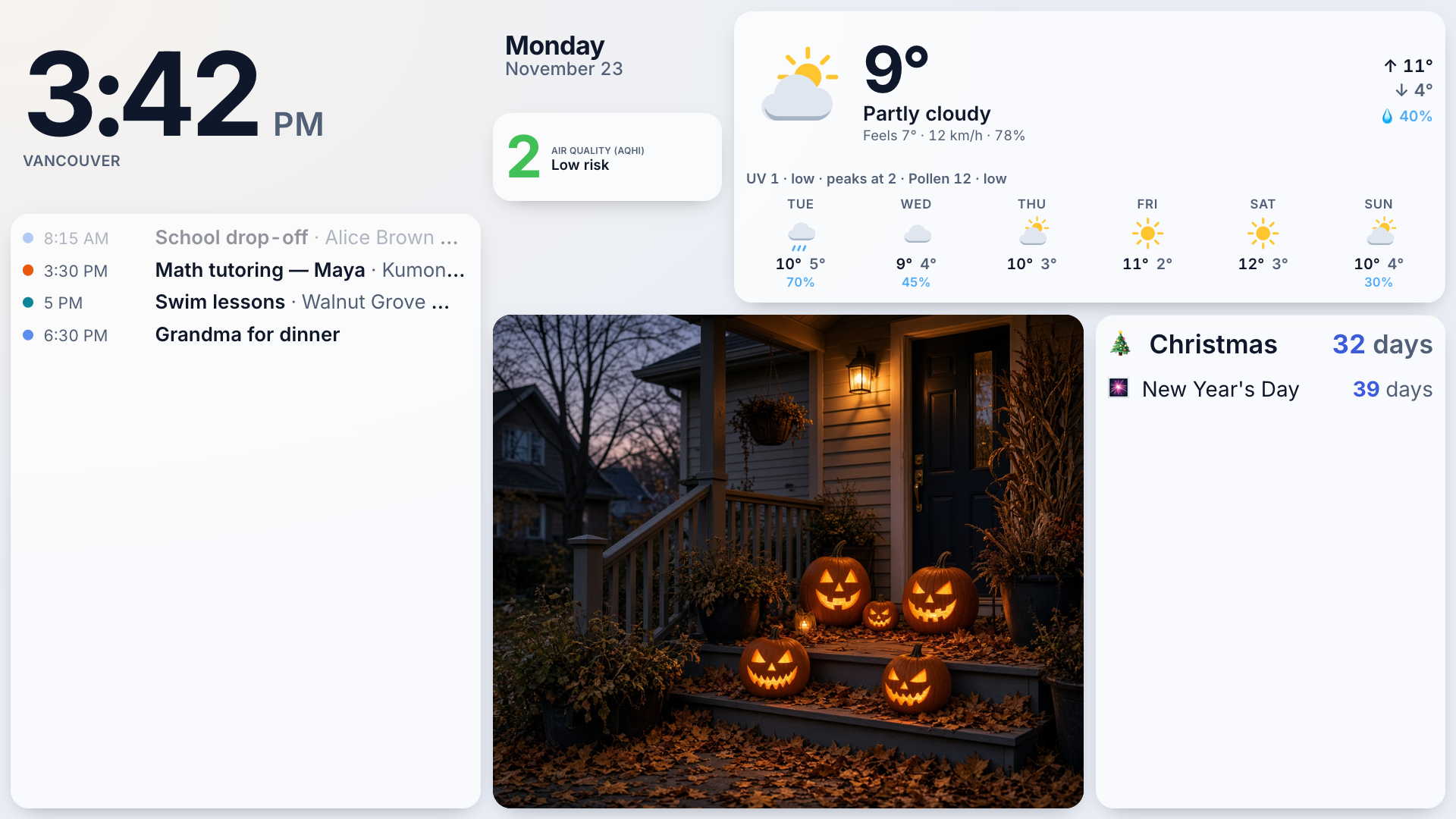
When nobody's using it, it can become a photo frame. Photos come from a private library you upload to, Google Photos, Amazon Photos, iCloud shared albums and more. Portrait photos pair up side by side, and the ones taken on this day in earlier years come first.

Where an Appliance Still Wins
To be fair: a dedicated frame comes in a box, already mounted on a stand, with nothing to set up. If you want zero setup and never plan to change the layout, that's worth paying for. If you'd rather reuse a screen, choose your own layout, and add the weather, the bus or the shopping list, a browser dashboard does more for less. There's a longer side-by-side in Everydaypane vs Skylight.
Free or Household
Free is a complete calendar wall for one layout on up to two screens. Household ($7 a month or $59 a year) adds the family tools (chores, meals, the shopping list, the message board), up to 30 views that change by time of day, the photo frame screen saver, local alerts and smart home controls.
Tip. Got a tablet that only does portrait? Pick Family Hub (Portrait) or Kids Routine (Portrait) from the starter templates.
Ready to try it? Start Free on Everydaypane.