

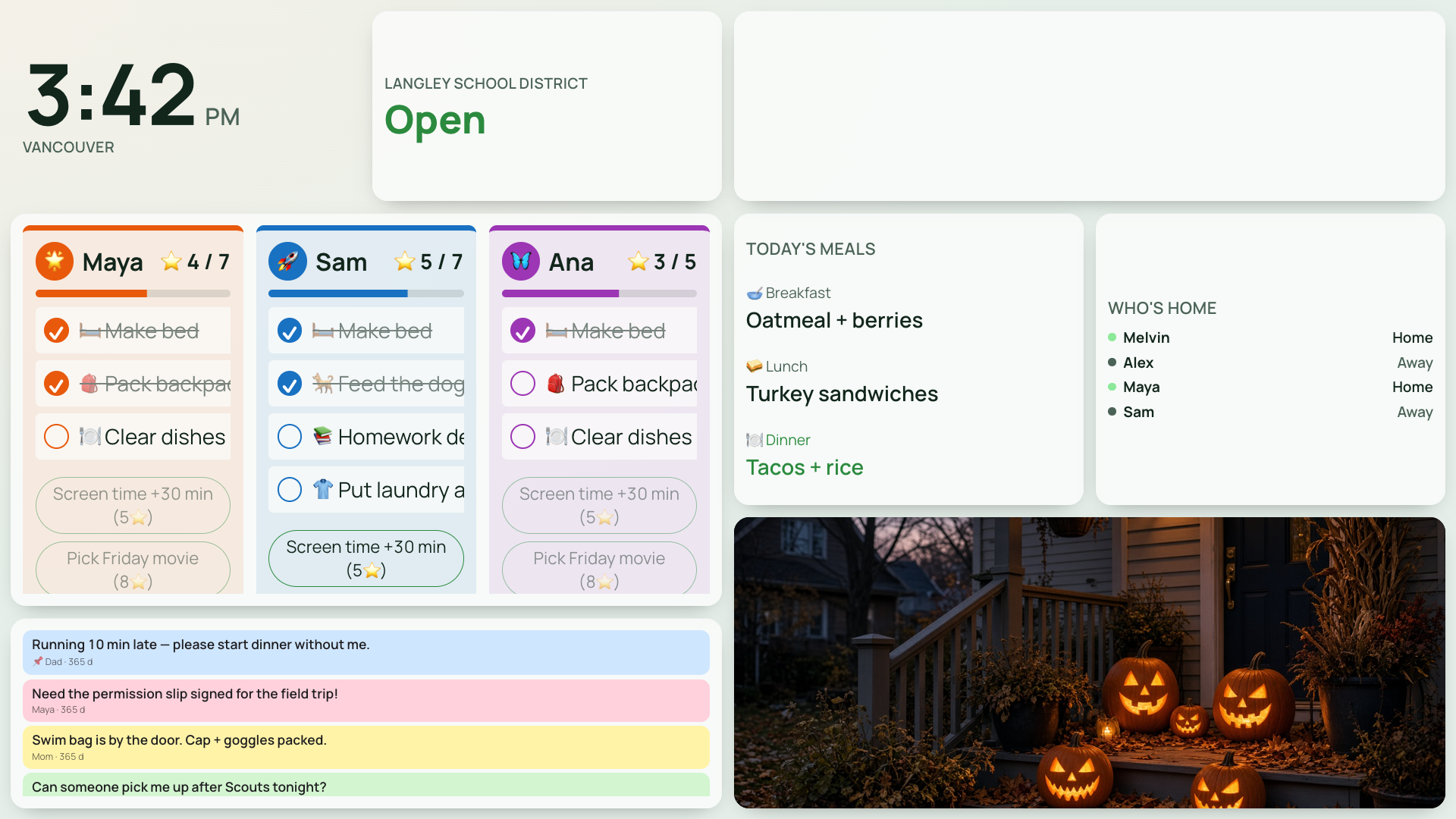
Almost every family has one: an iPad that's too slow for games now, or a Fire tablet from a Prime Day sale. It's a perfectly good wall calendar. It has a touch screen, Wi-Fi and a browser, and on a wall mount or a stand by the fridge it can show the family's week, the weather and photos all day. This guide covers the parts that trip people up: keeping it awake, keeping little fingers in the dashboard, and making it readable.
Will My Tablet Work?
- iPad: one that runs iPadOS 16 or newer. Older iPads stuck on iOS 12 or 15 can't run the dashboard's browser code.
- Fire tablet: any recent Fire HD with the Silk browser. A kiosk browser app from the Appstore makes it nicer (below).
- Android tablet: anything with an up-to-date Chrome.
Portrait or Landscape
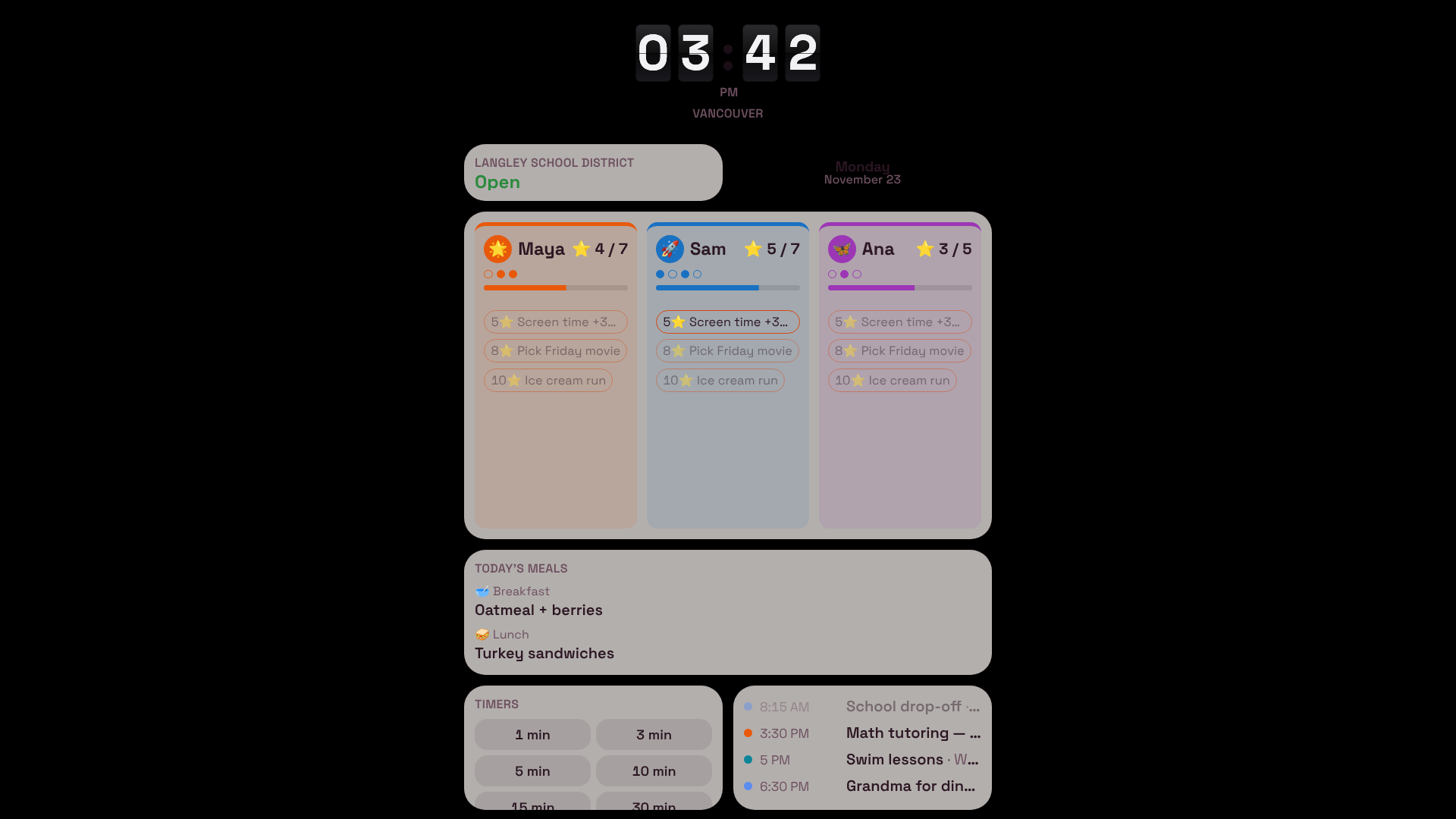
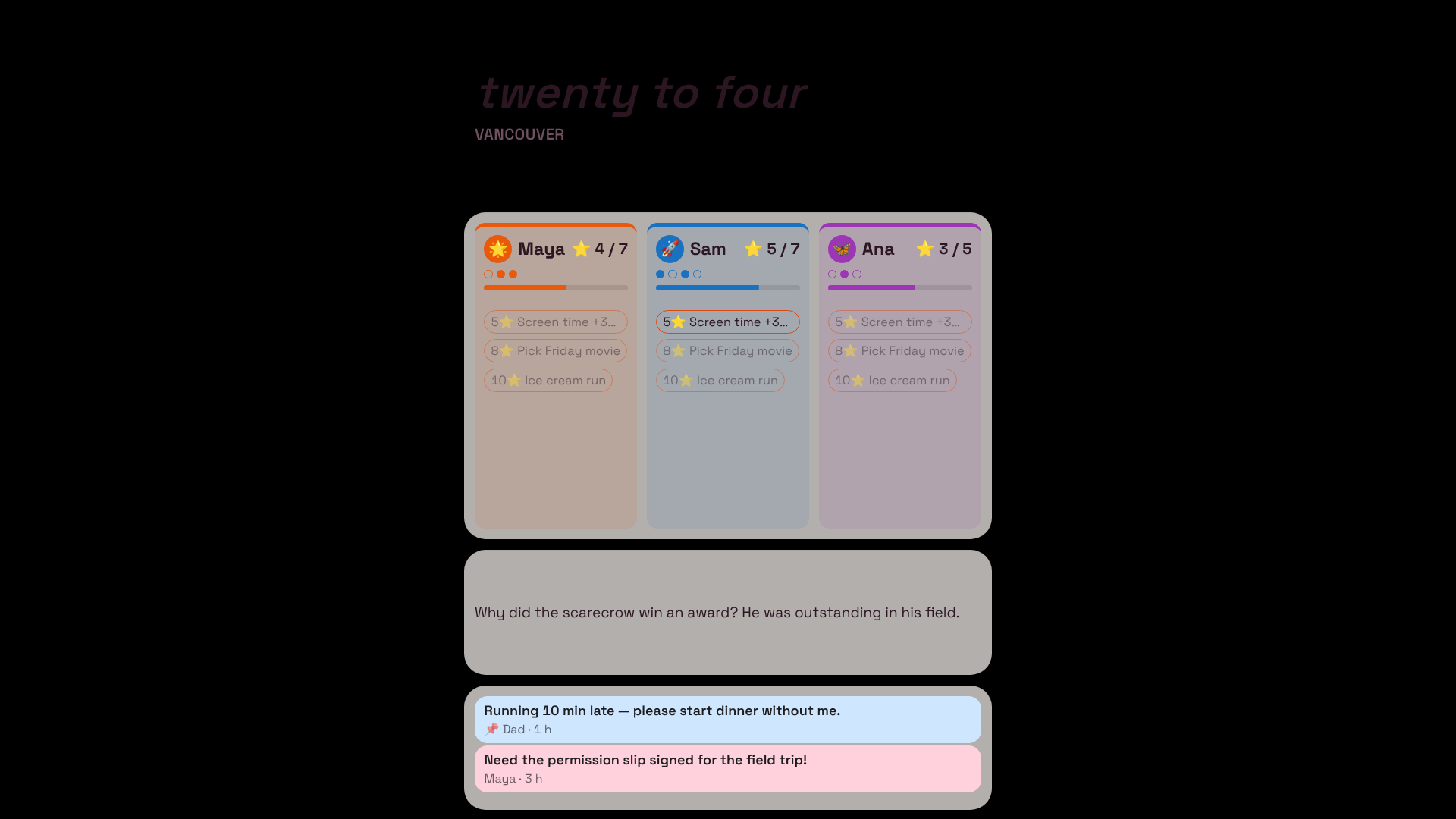
Tablets often hang better tall. Everydaypane has portrait layouts on an 8 × 12 grid: Family Hub (above), Kids Routine and Playroom. A landscape tablet can use any of the landscape templates.
Keep It Awake
- iPad: Settings › Display & Brightness › Auto-Lock › Never. Keep it plugged in.
- Fire or Android: turn on Developer options (tap the build number seven times in Settings › Device Options or About), then switch on Stay awake so the screen stays on while charging.
Lock It to the Dashboard
A wall tablet should open one thing and stay there. On an iPad, turn on Guided Access (Settings › Accessibility › Guided Access), open the dashboard in Safari and triple-click the side or home button to lock it in. On a Fire or Android tablet, a kiosk browser app such as Fully Kiosk Browser opens one address full screen at start-up and keeps it there, and can restart it if it ever closes.
Unlock the Dashboard With Your Phone
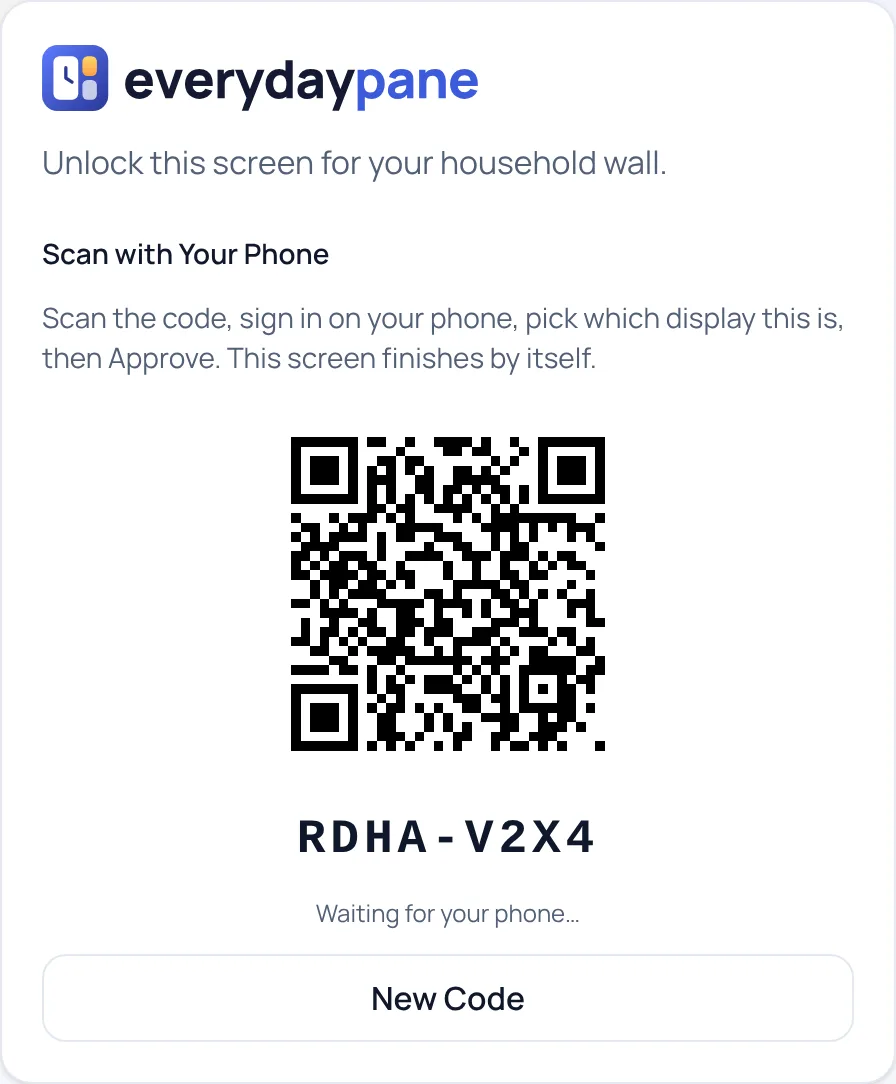
Open everydaypane.com/display/ on the tablet. It shows a QR code and an eight-character code. Scan it with your phone, pick the display, tap Approve. The tablet stays signed in from then on, and you'll change everything else from your phone.
Make It Readable From Across the Room
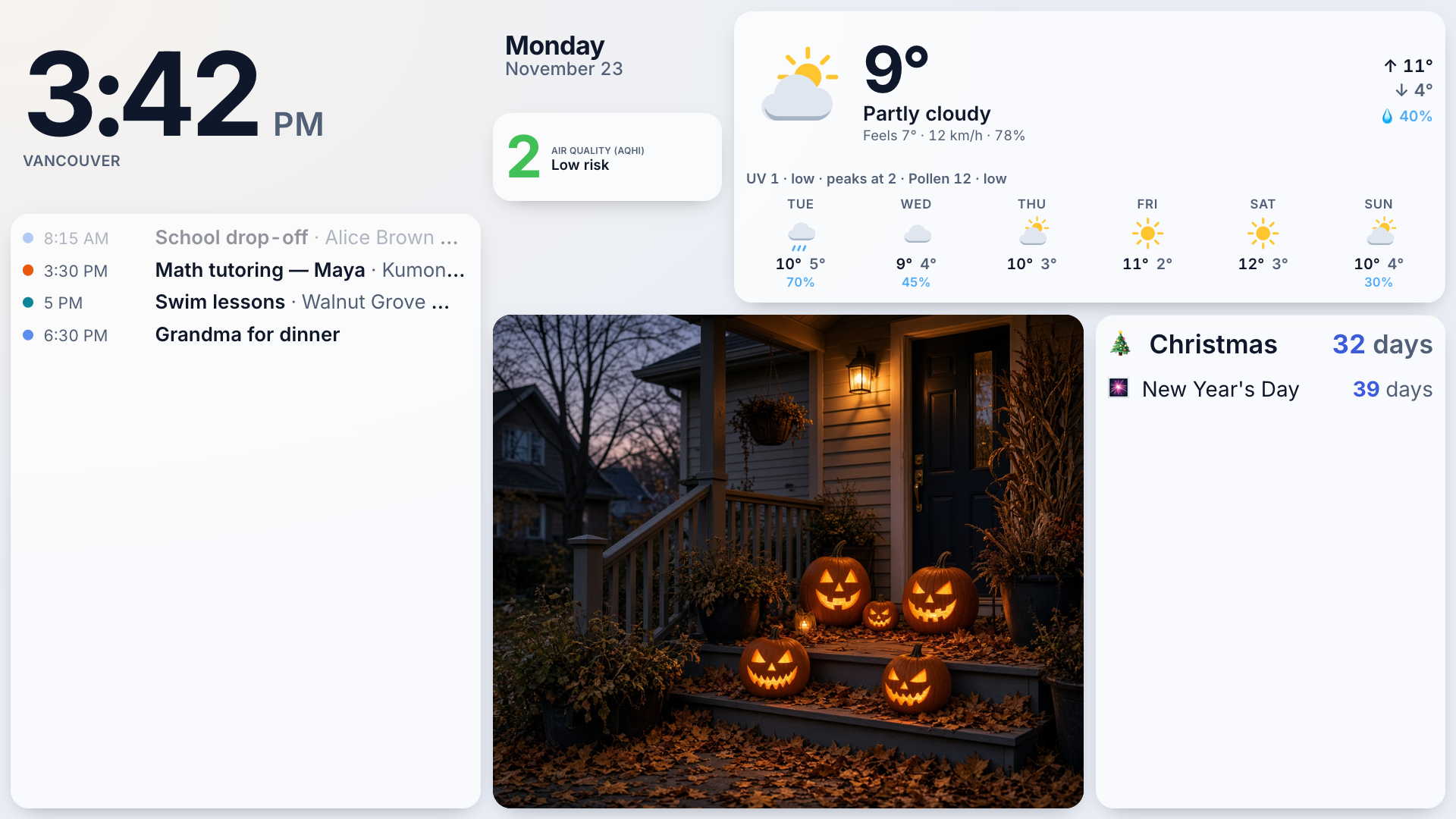
A 10-inch screen is small from the sink. Use fewer, bigger tiles: a clock, today's schedule, the weather and one more thing. Every text widget has its own font size, from 70 to 150 %, and night mode and dimming in the evening make it easier on the eyes. Kitchen Glance is a good landscape starting point.
Tip. Running hot or slow? Turn off glass effects in the theme (they're off by default) and use a photos widget with a longer time between photos. The wall page itself is tiny, so most old tablets keep up.
Free or Household
A tablet wall with one layout, two calendars, photos and the weather is Free. The portrait family templates, chores, timers, the whiteboard and views that change through the day are part of Household.
Ready to try it? Start Free on Everydaypane.